Canva AI Create Viral Thumbnails Fast Using in 2026
canva ai
Just Now
17 MB
Version 3.5
All Devices
15k

Description
Introduction Of Canva AI
Would you like to get more views on your YouTube videos and people click on your videos interested to? If yes, you should pay special attention to thumbnails of your videos.
Thumbnail (Thumbnail) of the video on YouTube is the image the viewer can see before opening the video. A good thumbnail plays a crucial role in encouraging people to gain attention and watch the video Can pay.
Graphic designing skills and intricate software were required to first create a professional thumbnail. But now with cutting-edge tools like Canva AI, you can easily create beautiful and charming thumbnails.
About Canva AI?
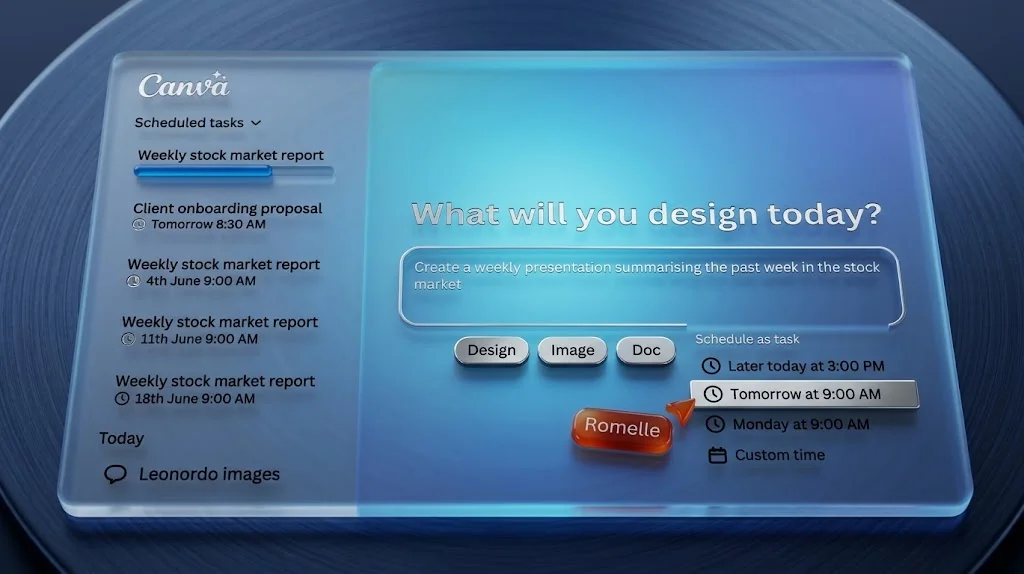
Canva AI is an acclaimed online design platform with your social media posts, presentations, posters, logos and youtube thumbnails can be made
Creating, generating or altering AI features in Canva AI getting text ideas and creating images Creatives help simplify work. Available features by your account, plan and region Might be different.
One of the greatest benefits of Canva AI is that you don’t have to be a professional designer. You use finished templates. Can add photos, colors, texts and other design elements to your thumbnail.
Official website: https://apkrandi.com
Youtube thumbnail is important?
Thousands of videos are approved daily on YouTube. Just a good video to grab the views attention. Creation is not enough but its presentation is also important.
An effective thumbnail has several advantages:
Achieving More Attention: Featured colours and clearer photos make your video stand out between others can.
Defining Video Topic: Viewers can guess what the video is about by watching Thumbnail me.
Help Improving Cluck Rates: Encourage related and exciting thumbnail viewers to open video can.
Making Channel Recognition: Same design style can give your channel a Unique Identity.
Professional Impression: Clean Thumbnail makes your content look more organized.
Remember that only good thumbnail doesn’t guarantee to go viral. Video criteria, topic, title, viewer’s Interest and satisfaction are also important factors.
How to Create a Viral Thumbnail from Canva AI
Now let’s learn how to create a fascinating YouTube thumbnail with the help of Canva.
Step 1: Open Canva AI website
First go to ApkRandi.com and sign in to your account. If you don’t have an account, you can create a new account in the available way.
Find “YouTube Thumbnail” via search bar in Canva. You’ll see different design templates with your own Can be utilized as required.
Step 2: Select proper thumbnail size
The size of 1280 × 720 pixels is generally used for Youtube thumbnail, with which Ratio is 16:9.
Choosing a Youtube Thumbnail template in Canva generally unlocks precise design.
Try to get a clean, balanced and easily read on a mobile screen.
Step 3: Choose a Good Template
Templates are available for different topics in Canva, e.g:
- Technology and AI
- Gaming
- Educational Videos
- Vlogs
- Online Earnings
- Business and Marketing
Choose a template about the topic of your video. It then has colors, photos, text and others. Create your unique design by transforming the elements.
You don’t necessarily keep the entire template in the same way. To make changes according to your video, thumbnail is more personal. And can feel unique.
Step 4: Get image or design idea from Canva AI
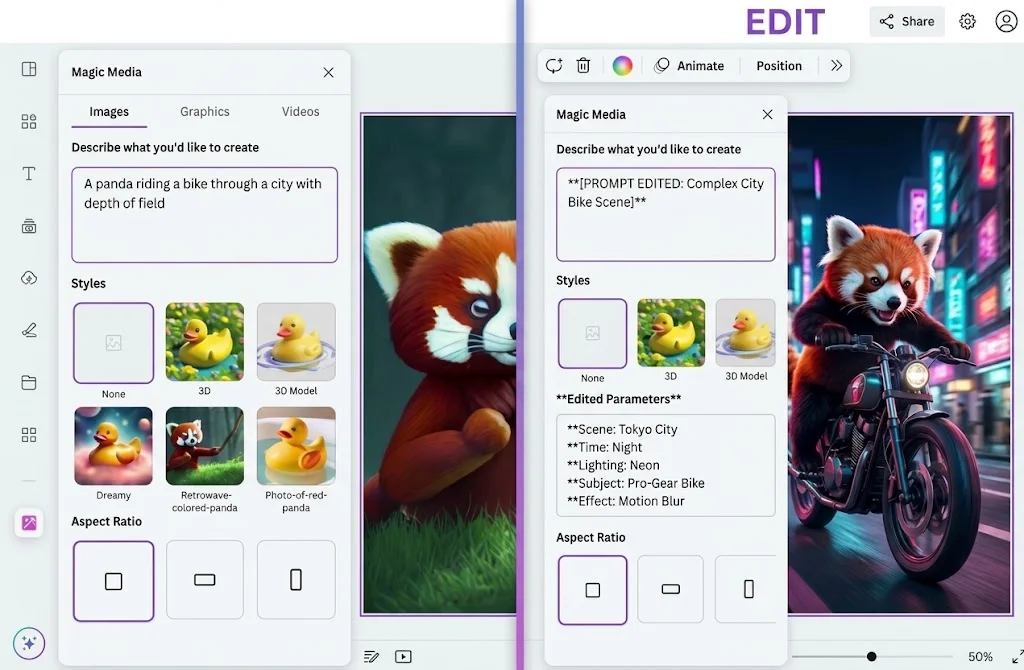
Get an image or creative idea for your thumbnail with AI features available in Canva Can.
For example, if the topic of your video is AI Tools, you’re an innovative technology style. Can try to get backgrounds ready.
Use this prompt if the AI Image Generation Feature is available:
AI Image Prompt:
“Create a cinematic YouTube thumbnail background about artificial intelligence, futuristic blue and purple lighting, glowing digital elements, high contrast, professional composition, empty space on the left for bold text, 16:9 aspect ratio, no text, no watermark”
This prompt aims to create an innovative, elegant and tech-related background. The result may vary. That’s why change the prompt as needed.
Add an image you’ve made to your design. If you’ll have relevant AI features on your account. Typical photos, graphics and templates from Canva are unavailable.
Step 5: Add Featured & Short Text
A good thumbnail text should be short, clear, and easily readable.
Adding too many vocabulary can make the design feel full, especially on mobile phone.
For example:
- 5 best ai tools
- Free ai tools
- Edit videos faster
- Canva ai tricks
- Make better thumbnails
If you make videos in Urdu, you can also use Urdu texts, e.g.
- “5 Best AI Tools”
- “Create Thumbnail for free”
- “Video editing from AI”
- “Must try this tool”
Choose a font that’s clearer and stands out from the background. A light shade behind the text or Contrast can also be utilized so it’s easier to read.
Step 6: Choose Proper Colors
Colors play a pivotal role in thumbnail impression. You can choose colours that each other. Look good and make the text stand out.
For example:
Yellow & Kala: Featured & Strong Contrast
Blue & White: clean & modern style.
Red And White: Attention Achieving Struct
Purple & Blue: Tailored Combination for Technology and AI
Avoid using too many colours in each thumbnail. One with two or three basic colours. Organized design often looks cleaner.
Step 7: Add your photo or related graphics
If you’re explaining a topic, add related image, facial expressions or adequate graphic Thumbnail can be more effective.
For example, if you’re making a video about Canva AI in Thumbnail Canva Cannot use graphic, computer screens or a photo of yourself.
However, don’t use an image that’s irrelevant to a video topic. Things shown in Thumbnail must comportant the original content of video.
Step 8: Check Thumbnail on mobile screen
Look at the small size after the design is complete. If it’s hard to read the text or the important picture is obvious Make a difference in the design if you are.
Check that:
The text is obvious and large.
The main picture is easily visible.
Important elements are not very close to the shores.
Difference in colours.
The design isn’t packed with unnecessary elements.
This stage is very important because many Viewers use on YouTube mobile phones.
Step 9: Download Thumbnail
When your design is complete, go to Download in Canva.
JPG or PNG format typically suits youtube thumbnail. To download image Then check her quality and file size, then uploaded it as thumbnail of YouTube video.
Best Tips To Make Viral Thumbnails
1. Attention to a clear idea
Feature a main idea instead of adding too many topics to Thumbnail. Immediately Audience You should understand what the video is about.
2. Use fewer words
Short texts can be read more easily. Just try to use the only words of the video. Explain important idea.
3. Keep construct better
There should be a definitive difference between texts and backgrounds. Thumbnail should also be featured in small sizes. can.
4. Maintain compatible with video title
Thumbnail and video title complete each other. Unrealistic claims or misleading images temporarily Cannot pay attention, but can reduce audience confidence.
5. Create a consistent style of your channel
Audience can recognize your channel by adequate matching colors, fonts and designs.
6. Learn from other successful thumbnails
Watch thumbnails for successful videos on your topic and use their colors, layouts and text Review. Create your own unique design by getting ideas from them instead of copying them.
7. Check results
Check out your Thumbnail performance via analytics available in YouTube studio. Click-through rates compared to impressions. (CTR) is a useful indication, but it should be understood with the topic, audience and other metrics of the video.
Where youtube test and compare feature is available, it can be detected by trying different thumbnails. Which design performs better.
Canva AI The Best Prompts For Thumbnail Creation From AI
If you’d like to generate thumbnail backgrounds or design ideas with the help of AI enter Prompts below can be replaced by your video.
1. Technology for video
“Create a modern technology YouTube thumbnail background with futuristic blue lighting, digital elements, dramatic contrast, clean composition, and empty space for a headline. 16:9, no text, no watermark.”
2. For Gaming Video
“Create an exciting gaming thumbnail background with cinematic lighting, vibrant colors, dramatic atmosphere, a central focal point, and space for bold text. 16:9, no text, no watermark.”
3. Online Earing Video
“Create a professional YouTube thumbnail background about online business and digital skills, modern workspace, laptop, strong visual contrast, clean layout, and space for a short headline. 16:9, no text, no watermark.”
4. For Educational Video
“Create a clean educational YouTube thumbnail background with books, digital learning elements, bright colors, clear focal point, and empty space for a short headline. 16:9, no text, no watermark.”
Note: These prompts are for design ideas and backgrounds. If you’ve got the correct words inside the image It’s better to add texts to Canva’s editor and check its tamarind.
Canva AI is free or do you have to pay?
Canva AI provides both free and paid plans. Basic designs, multiple templates and common editing works Can be done with a free plan.
However, need Canva Pro or other paid options for some premium photos, templates, AI tools and extra amenities May be. The use of AI features may vary.
If you just want to make YouTube thumbnails trick your first free plan. When somebody needs specific premium features, then think of upgrading.
Result
With the help of Canva AI, it’s easier than ever to create beautiful, engaging, and professional thumbnails for YouTube. Gone. Its curated templates, design tools and available AI features give you a better design in less time Can help develop.
In order to create an effective thumbnail, you’ll need to have clear image, short text, suitable colours and neat design. Choose. Also make sure thumbnail is compatible with the original topic of video.
Remember no AI tool guarant viral. But if you simbelieve Canva AI Use, continuously improve your thumbnails and understand the audience’s interest, you’ll see your videos. Can improve the offer.
Download links
How to install Canva AI Create Viral Thumbnails Fast Using in 2026 APK?
1. Tap the downloaded Canva AI Create Viral Thumbnails Fast Using in 2026 APK file.
2. Touch install.
3. Follow the steps on the screen.